External Links#
External links are URLs associated with managed jobs and clusters that are displayed in the SkyPilot dashboard. This is useful for linking to external dashboards, experiment trackers, or any other relevant resources.
SkyPilot automatically detects and displays four types of links:
Instance links: For jobs running on AWS, GCP, or Azure, SkyPilot automatically adds links to the cloud console for the underlying instance.
Log-detected links (built-in): The dashboard automatically parses job logs to detect URLs from supported services (currently Weights & Biases) and displays them as external links.
Admin-configured custom URLs: Administrators can register a list of labeled regex patterns in the SkyPilot config. Matching URLs that appear in job logs (job detail page) or cluster provision logs (cluster detail page) are rendered as clickable, labeled links.
Admin-configured URL templates: Administrators can register labeled URL templates that are built from cluster/job metadata (e.g.,
https://ray.internal.example.com/dashboard/${cluster_name}) and rendered on every cluster and job detail page, without needing the URL to appear in logs.
Admin-configured entries can optionally be restricted to cluster or job pages with a scope field; see Restricting links to specific pages with scope.
Supported services#
SkyPilot automatically detects URLs from the following services in your job logs:
Weights & Biases (W&B): Run URLs on W&B SaaS (e.g.,
https://wandb.ai/<entity>/<project>/runs/<run_id>) and W&B Dedicated Cloud tenants (e.g.,https://<tenant>.wandb.io/<entity>/<project>/runs/<run_id>)
When your job prints a URL from a supported service to stdout or stderr, the dashboard will automatically extract it and display it in the “External Links” section.
Example: Using Weights & Biases#
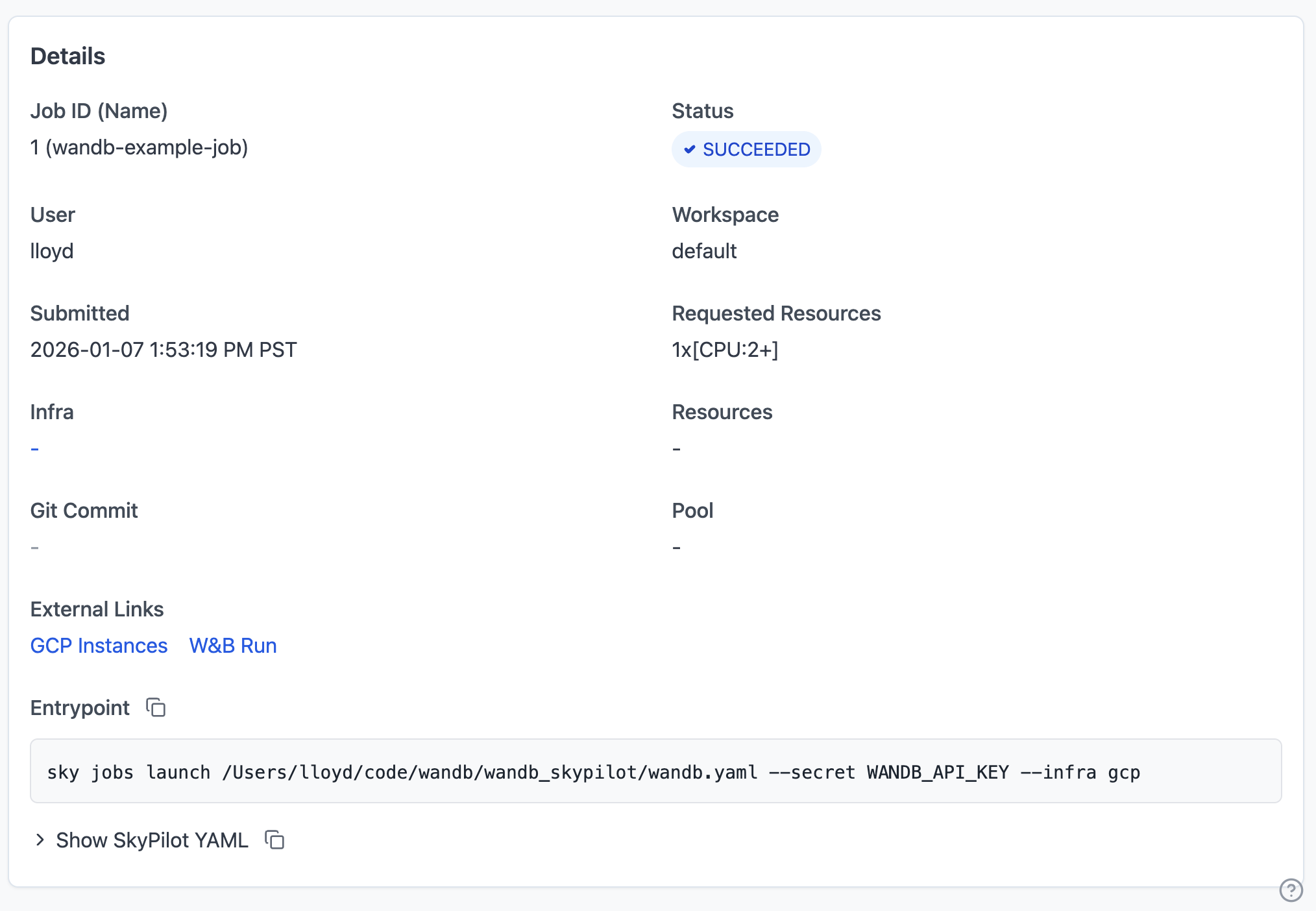
When using W&B for experiment tracking, the W&B library automatically prints the run URL to stdout when you initialize a run. SkyPilot detects this and displays it in the dashboard.
Here’s an example training job:
# wandb_training.yaml
name: wandb-training

envs:
  WANDB_API_KEY: null # Set via --secret

setup: |
  pip install wandb torch

run: |
  python train.py
# train.py
import wandb
run = wandb.init(project='example', name='demo-run')
run.log({'loss': 1.0})
run.finish()
Launch the job:
$ sky jobs launch -n wandb-example-job --env WANDB_API_KEY=$WANDB_API_KEY wandb_training.yaml
Once the job starts and W&B prints the run URL to the logs, you’ll see the link appear in the dashboard:
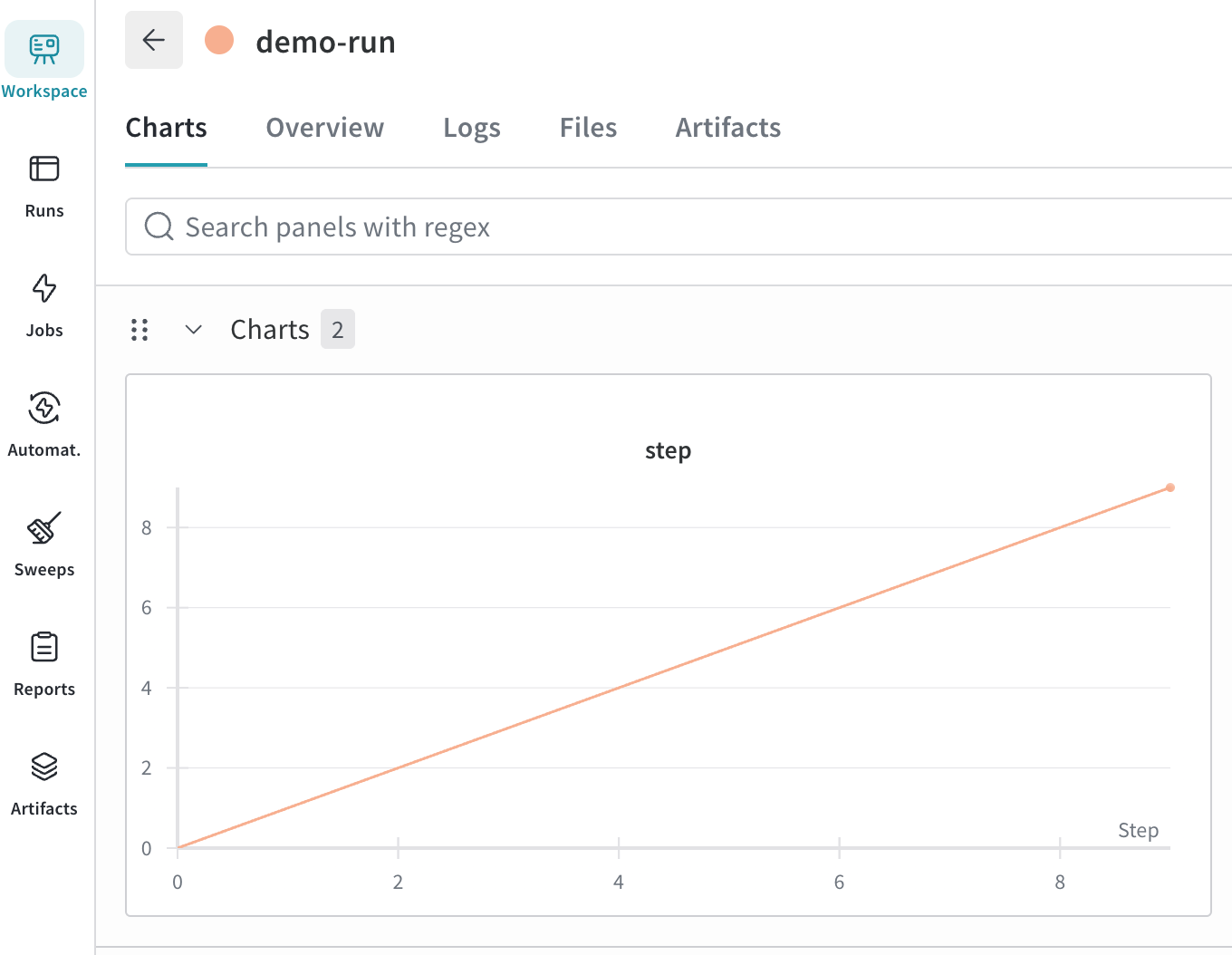
Clicking the link will take you directly to the W&B run page allowing you to quickly view the run metrics and artifacts.
Admin-configured custom URLs#
Administrators can extend the built-in W&B detection with their own
{label, regex} entries in the SkyPilot server config. Any URL printed
to the logs that matches a configured regex is rendered as a clickable,
labeled link on both the cluster and job detail pages.
Add the entries under a top-level dashboard block in
~/.sky/config.yaml on the SkyPilot API server:
dashboard:
  external_links:
    - label: "Grafana"
      regex: 'https://grafana\.internal\.example\.com/d/[a-z0-9]+.*'
    - label: "Internal tools"
      regex: 'https://tools\.internal\.example\.com/.*'
Each entry takes:
label: The text shown to users in the External Links section.regex: A Python-style regex matched against whitespace-delimited tokens in streamed log output. Each pattern resolves to at most one URL per cluster or job (the first match wins).scope(optional): The pages the link may appear on; see Restricting links to specific pages with scope.
After updating the config, restart the API server
(sky api stop && sky api start) so the new entries are loaded.
Custom URL matches appear on:
The job detail page under External Links, alongside W&B and instance console links. Scanning happens as job logs stream into the browser.
The cluster detail page under External Links. The dashboard automatically streams the tail of the most-recent job’s logs to scan for matches; if you also expand the Provision Logs section, those lines are scanned as well.
Regexes that fail to compile are rejected at config load time with a clear error, so a malformed entry does not silently disable other entries.
Admin-configured URL templates#
For services with stable, predictable URLs (a Ray dashboard behind a reverse
proxy, Grafana dashboards keyed by cluster name, an internal experiment
platform keyed by job ID, etc.), scanning logs is unnecessary: the link can
be constructed directly from cluster or job metadata. Configure these as
{label, url} entries in the same dashboard.external_links list:
dashboard:
  external_links:
    - label: "Ray Dashboard"
      url: 'https://ray.internal.example.com/dashboard/${cluster_name}'
    - label: "Grafana"
      url: 'https://grafana.internal.example.com/d/gpu?var-cluster=${cluster_name}'
    - label: "Experiment Platform"
      url: 'https://exp.internal.example.com/jobs/${job_id}'
Each entry takes:
label: The text shown to users in the External Links section.url: A URL template.${variable}placeholders are substituted with URI-encoded values from the page being viewed. An entry must have eitherurlorregex, never both.scope(optional): The pages the link may appear on; see Restricting links to specific pages with scope.
Supported template variables:
Variable |
Cluster page |
Job pages |
|---|---|---|
|
The cluster’s name |
The job’s backing cluster |
|
Not available |
The job’s ID |
|
Not available |
The job’s name |
|
The cluster’s owner |
The job’s owner |
|
The cluster’s workspace |
The job’s workspace |
A link is only rendered on pages where all of its variables resolve: an
entry referencing ${job_id} appears on job detail pages but not on
cluster detail pages, while an entry referencing only ${cluster_name}
appears on both. Templates referencing unknown variables are rejected at
config load time.
Restricting links to specific pages with scope#
By default, an entry appears on every page where it can be produced: a
regex entry appears wherever a matching URL is found in the scanned
logs, and a url entry appears wherever all of its template variables
resolve. For example, a template referencing only ${cluster_name}
shows up on the cluster detail page and on job detail pages (where it
resolves against the job’s backing cluster).
To pin a link to specific pages, add an optional scope list to the
entry:
dashboard:
  external_links:
    # Only on the cluster detail page, even though ${cluster_name} also
    # resolves on job pages.
    - label: "Ray Dashboard"
      url: 'https://ray.internal.example.com/dashboard/${cluster_name}'
      scope: [cluster]
    # Only on job detail pages.
    - label: "Experiment Platform"
      url: 'https://exp.internal.example.com/jobs/${job_id}'
      scope: [jobs]
    # Log-scanned links can be scoped too.
    - label: "Grafana"
      regex: 'https://grafana\.internal\.example\.com/d/[a-z0-9]+.*'
      scope: [jobs]
Valid scope values:
cluster: The cluster detail page.jobs: Job detail pages, both managed jobs and jobs submitted to a cluster withsky exec/sky launch.
An entry without scope keeps the default behavior described above.
Unknown scope values are rejected at config load time. Note that a link’s
template variables must still resolve on an in-scope page: scope only
further restricts where a link may appear; it cannot make a
${job_id} link render on the cluster page.